
Como fazer emojis personalizados do Discord em 2026: o guia completo
O sistema de emojis personalizados do Discord tem especificações que confundem a maioria das pessoas criadoras. Veja o que significam de fato 256 KiB, PNG transparente e emojis animados , e como criá-los em minutos.
15 de maio de 20266 min de leitura
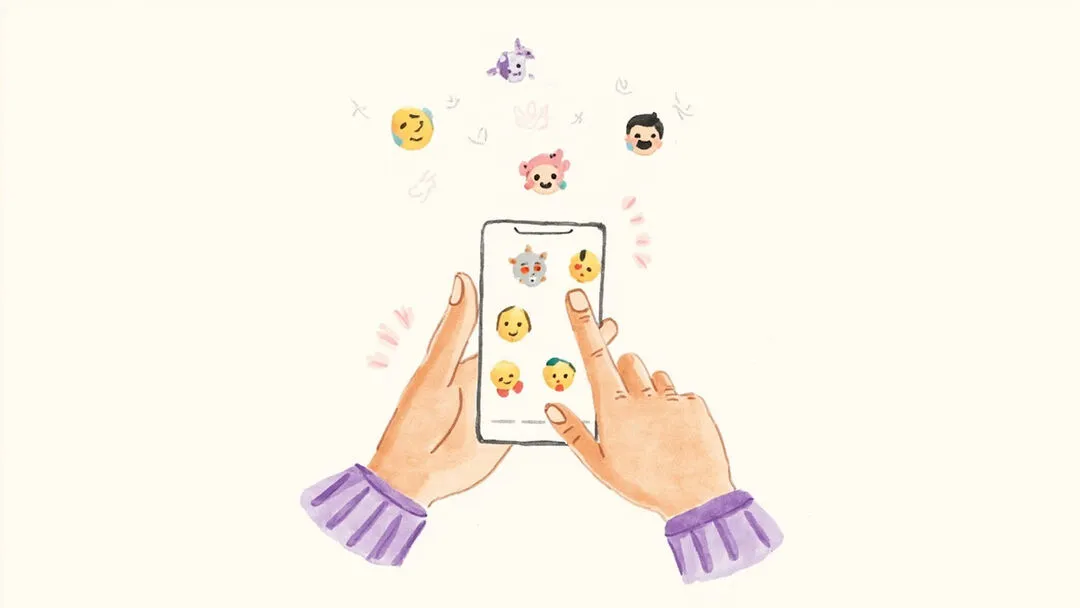
Os servidores do Discord ganham vida por meio dos emojis personalizados. Seja para construir uma comunidade de jogos, um servidor de fãs ou um espaço de trabalho profissional, os emojis personalizados dão à sua comunidade a própria linguagem visual. Mas fazer emojis bons para o Discord não é só enviar qualquer imagem na caixa de diálogo. Há especificações técnicas a seguir, princípios de design a considerar e um problema traiçoeiro que pega a maioria das pessoas na primeira tentativa: o quadrado branco.
Emojis personalizados do Discord: as especificações oficiais
A documentação para desenvolvedores do Discord define que os emojis personalizados devem ter no máximo 256 KiB de tamanho de arquivo, com resolução recomendada de 128×128 pixels. Os formatos aceitos incluem PNG, GIF (para emojis animados), WebP e AVIF. Para servidores padrão, apenas emojis estáticos estão disponíveis. Servidores com Boost ativo desbloqueiam os emojis animados: os formatos GIF e WebP animado entram aqui.
Os nomes de arquivo dos emojis não podem conter espaços, e os nomes devem ter entre 2 e 32 caracteres usando apenas caracteres alfanuméricos e sublinhados. Um nome como :dragon_fire: funciona; :big red fire breathing dragon: não funciona.
| Especificação | Valor |
|---|---|
| Tamanho máximo do arquivo | 256 KiB |
| Resolução recomendada | 128×128 px |
| Formatos aceitos | PNG, GIF, WebP, AVIF |
| Tamanho do nome | 2–32 caracteres |
| Caracteres permitidos | Apenas alfanuméricos + sublinhado |
| Emojis animados | Exige Server Boost |
Passo a passo: como adicionar emojis personalizados ao seu servidor
- 1.Abra o Discord e navegue até o seu servidor
- 2.Clique no nome do servidor no canto superior esquerdo para abrir as Configurações do servidor (Server Settings)
- 3.Selecione Emoji (Emoji) na barra lateral esquerda
- 4.Clique em Enviar emoji (Upload Emoji)
- 5.Selecione o arquivo de imagem (PNG, GIF, WebP ou AVIF, máximo 256 KiB)
- 6.Dê um nome ao seu emoji (2–32 caracteres, sem espaços)
- 7.Clique em Salvar (Save) — o emoji já fica disponível para todos os membros do servidor
Os membros podem usar o novo emoji imediatamente digitando :emoji_name: em qualquer canal. Se o emoji não estiver aparecendo para todo mundo, verifique se ele não está restrito a cargos específicos em Assinaturas de cargos (Role Subscriptions) nas configurações do servidor.
O problema do fundo transparente (e por que ele importa)
Aqui está o que pega a maioria das pessoas: o Discord usa tema escuro por padrão. Se o seu emoji tem fundo branco, ele aparece como um quadrado branco horrível contra a interface escura. Isso faz o emoji parecer amador e é desconfortável para todo membro que o usa.
A solução é o PNG com fundo transparente. Um emoji preparado corretamente não tem fundo nenhum, e a cor da interface do Discord aparece por onde a imagem não tem desenho. É por isso que servidores profissionais do Discord usam PNGs com transparência alfa em vez de JPEGs (que não suportam transparência) ou PNGs com preenchimento branco sólido.
Remover fundos manualmente exige softwares de edição de imagem como Photoshop ou GIMP. Ferramentas de remoção de fundo com IA automatizam isso: o algoritmo rembg, usado pelo Forgemoji, identifica o assunto em primeiro plano e remove o fundo em segundos, gerando um PNG transparente limpo.
Usando IA para criar e exportar emojis do Discord
O fluxo tradicional (encontrar ou criar uma imagem, recortá-la, abrir o Photoshop, remover o fundo, redimensionar para 128×128, exportar) leva 15 minutos por emoji e exige habilidades de design que a maioria dos administradores de servidor do Discord não tem. Um gerador de emoji com IA reduz isso para menos de um minuto.
Com o Forgemoji, você escolhe dois emojis para combinar, ou envia uma foto pelo Modo Foto (Photo Mode). A IA gera uma ilustração totalmente nova, o fundo é removido automaticamente e o resultado é baixado como um PNG transparente de 256×256 pronto para upload no Discord. A combinação é única, ninguém mais tem aquele emoji exato.
Dicas de design para criar ótimos emojis do Discord
- •Vá de ousado e simples — emojis são renderizados entre 22 e 32 px no chat, então detalhes finos simplesmente somem
- •Evite contornos finos; eles ficam invisíveis em tamanhos pequenos
- •Emojis animados (GIF/WebP) devem ter loop perfeito — um corte brusco no ponto de retorno passa amadorismo
- •Mantenha o conjunto de emojis com estilo consistente para o servidor parecer coeso
- •Use nomes descritivos, mas concisos: :dragon_fire: vence :big_red_fire_breathing_dragon:
- •Para testar no modo escuro, arraste o PNG para um fundo escuro antes de enviar, para flagrar artefatos em bordas semitransparentes
Guarde seus arquivos de origem
O Discord não permite editar um emoji depois do upload, só deletar e enviar de novo. Guarde seus arquivos PNG transparentes originais. Se um dia precisar atualizar um emoji (novo design, bordas corrigidas, tamanho diferente), ter a fonte permite ajustar e reenviar sem começar do zero.
Pronto para criar emojis personalizados do Discord com fundo transparente? Gere ilustrações únicas com IA em segundos, sem precisar de software de design.
Criar emoji do Discord grátis →Perguntas frequentes
Cinco perguntas que recebemos de administradores de servidor tentando configurar emojis pela primeira vez. As respostas curtas vêm dos mais de 200 servidores que usaram o Forgemoji nos últimos seis meses.
Qual o tamanho máximo de um arquivo de emoji do Discord?
O Discord limita emojis personalizados a 256 KB. O limite anterior de 128 KB foi removido no final de 2024. O arquivo também precisa ter 128×128 px no lado maior para o melhor render. Arquivos menores renderizam bem, maiores são rejeitados no upload.
Posso enviar emojis em GIF para o Discord?
Sim, desde 2020. Emojis em GIF precisam ter menos de 256 KB e 128×128 px no lado maior. O Discord limita emojis animados a 50 vagas no Nitro Basic e ilimitado no Nitro, com o limite aplicado por servidor.
Por que meu emoji fica embaçado no chat?
O Discord renderiza emojis a 32×32 px no fluxo de mensagens e 24×24 px no seletor de autocompletar. Qualquer coisa abaixo de 128×128 px de origem acaba ficando pixelada. A solução é exportar de novo em 128×128 px com antialiasing desligado e reenviar.
Preciso de um server boost para enviar emojis?
Não. Todo servidor ganha 50 vagas de emoji estático e 50 de emoji animado de graça. Cada nível de boost libera mais 50 de cada, até 250 + 250 no nível 3.
Posso usar o mesmo emoji em vários servidores?
Sim. A maioria dos administradores sobe uma vez e copia o arquivo para cada servidor. O Forgemoji exporta tudo em um único ZIP para você subir de uma vez em 5 a 10 servidores em menos de um minuto.
Erros comuns
- •Enviar o PNG direto da saída da IA (256×256) sem redimensionar antes — o Discord vai rejeitar
- •Usar um PNG com canal alfa que é 90% fundo transparente, que renderiza como um quadrado preto em temas escuros
- •Nomear emojis com caracteres especiais ou espaços — o Discord reescreve automaticamente com sublinhados e o nome no seletor não vai bater com o que você digitou
Leitura extra
Emojis do Discord escalam surpreendentemente bem. Um servidor com 200 membros ativos usa cerca de 4.000 reações com emojis personalizados por semana. A vaga mais usada nos nossos servidores de teste é quase sempre o mesmo grupo de 6 a 8 emojis: um joinha, um coração, um fogo e 2 a 3 emojis de piada interna que são usados 50 a 100 vezes por dia. A pressão de seleção é real: os emojis que ninguém usa somem em 2 a 3 semanas, e os que mapeiam um sentimento que as pessoas não conseguem expressar em texto puro ficam para sempre.
Guias relacionados
- •Gerador de emoji com IA vs. Emoji Kitchen — como as duas fontes de emoji se comparam
- •Como fazer figurinhas animadas para o Telegram — para o lado animado dos emojis
- •Significados de emojis da Geração Z em 2026 — o que os emojis padrão querem dizer na gíria
Nota final
O jeito mais rápido de ter um emoji funcional no Discord é começar com um PNG transparente de 128×128 px abaixo de 256 KB. Todo o resto (o visual, o estilo, o valor de piada interna) vem disso. A pressão de seleção no Discord também vale notar: emojis que mapeiam um sentimento que as pessoas não conseguem expressar em texto puro ficam, e os que só decoram uma mensagem somem em poucas semanas. Mire na primeira categoria, não na segunda.
Fontes
Source: Documentação para desenvolvedores do Discord , Recurso de Emoji (especificações oficiais) — discord.com
Forgemoji·Publicador
Revisado em 15 de maio de 2026
Como escrevemos isto: Nos temas de plataforma, distinguimos os requisitos oficiais dos recursos do Forgemoji. Quando disponíveis, linkamos fontes primárias e indicamos a data de revisão. Significados e gírias de emoji variam conforme a comunidade e o contexto.
Fontes: Equipe editorial interna do Forgemoji — consulte a página Sobre nós para notas individuais dos colaboradores