
Custom Emoji Maker Guide: From Idea to a Reusable Emoji File
A practical guide to making custom emoji with Forgemoji: choose a creation mode, write a prompt that survives small sizes, remove the background, and export the right file for chat platforms.
August 12, 20268 min read
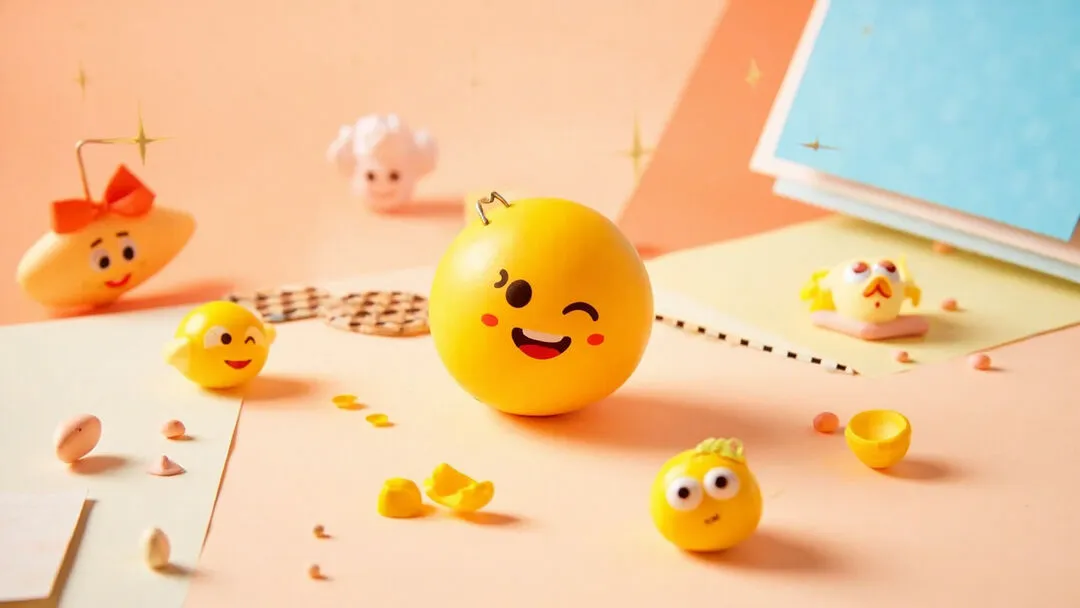
A custom emoji can start with a late friend, a team ritual, or one oddly specific Monday. The challenge is turning that idea into a file people can read at chat size. Give it a clear silhouette, a transparent background, and an export that fits the destination. Forgemoji lets you handle each step from one creation screen.
What makes a custom emoji work?
Custom emoji work as visual shortcuts. A reader should catch the subject and expression before studying the details. Start with one dominant subject, one readable action, and one emotional beat. “Sleepy coffee cat” gives the generator a clear shape; “a detailed morning cafe scene with five characters and three signs” gives it too many jobs.
- •Choose one main subject and one supporting idea.
- •Prefer a bold silhouette over delicate texture.
- •Use a short prompt that describes the emotion or action first.
- •Leave room around the subject so the transparent edge stays clean.
- •Test the result against both light and dark chat backgrounds.
Choose the right creation mode
Forgemoji supports three practical starting points. Use Emoji Mix when you want to fuse two familiar ideas into one new illustration. Use Text Prompt when the concept is more specific than two emoji can express. Use Photo Mode when you want to transform a person, pet, or object from an uploaded image into an emoji-style result. The mode changes the input, but the design goal stays the same: produce one subject that remains legible after background removal and export.
| Starting point | Best for | Prompting advice |
|---|---|---|
| Emoji Mix | Unexpected combinations and inside jokes | Pick two ideas with one shared emotional thread |
| Text Prompt | Specific characters, actions, and visual concepts | Put the subject and expression before style details |
| Photo Mode | A person, pet, or object with personal meaning | Use a clear subject with enough contrast from its background |
Write prompts for small screens
Write for the 24 or 32 pixel version. Name the subject, expression, and relationship between the main elements. “A smug raccoon holding a tiny trophy, bold cartoon emoji, clean outline” gives the generator a clear task. “A dramatic, highly detailed illustration in a magical environment” supplies mood but leaves the subject vague.
- 1.Name the main subject: cat, coffee cup, robot, flower, or a person from Photo Mode.
- 2.Add the action or emotion: celebrating, facepalming, panicking, waving, or resting.
- 3.Add one style cue: bold cartoon, soft kawaii, hand-drawn, or pixel-inspired.
- 4.State the output need when useful: single centered subject with a transparent background.
- 5.Remove extra scene details that compete with the expression.
Why transparent background matters
A custom emoji usually sits inside another app. A white or coloured rectangle looks pasted on, especially in dark mode. Forgemoji removes the generated background so the chat colour shows through. The same PNG can then move between Discord, Slack, Telegram workflows, design tools, and ordinary image sharing.
After generation, inspect the edge rather than only the centre. Look for leftover halos, clipped ears, missing fingers, or semi-transparent pieces that disappear on a dark background. If the silhouette is wrong, changing the prompt or choosing a new source image is usually faster than trying to repair a weak result after export.
Pick the export for the destination
| Format | Use it when | Watch for |
|---|---|---|
| PNG | You need a still image with broad compatibility | Check the alpha edge and platform file-size limit |
| GIF | The destination expects a widely supported animated image | Animation can increase file size quickly |
| WebP | You want a compact animated or still asset where supported | Confirm the destination accepts WebP before uploading |
For a normal custom emoji, start with the transparent PNG. It is the easiest version to inspect, archive, and reuse. Add GIF or WebP when motion contributes something: a bounce for celebration, a pulse for urgency, or a small float for a reaction that should feel alive. Motion should clarify the feeling, not make a simple emoji harder to read.
A repeatable custom emoji workflow
- 1.Write the one-line idea and choose Emoji Mix, Text Prompt, or Photo Mode.
- 2.Generate a few candidates and judge the silhouette at a small preview size.
- 3.Keep the clearest expression, not necessarily the most detailed image.
- 4.Check transparency on both a light and dark background.
- 5.Export PNG first, then create GIF or WebP only when the destination needs motion.
- 6.Rename the file clearly and keep the original asset for future resizing or re-uploading.
Common mistakes to avoid
- •Trying to fit a whole scene into a tiny reaction slot.
- •Choosing an image with a low-contrast subject and background.
- •Assuming a white background is transparent because it looks clean in a preview.
- •Adding animation before confirming that the still version is readable.
- •Overwriting the source file after uploading and losing the ability to revise it.
A strong custom emoji names a feeling your group already recognises and gives it a reusable shape. A slightly odd detail can beat a polished generic face because the detail gives the emoji a role in the conversation.
Have the idea? Turn it into a transparent custom emoji and see what the generator makes of it.
Make a custom emojiCustom Emoji Maker FAQ
Can I make a custom emoji from text?
Yes. Text Prompt mode is useful for a specific character, action, or visual concept that is difficult to express with only two emoji. Keep the prompt focused on one readable subject.
Can I use a photo as the starting point?
Yes. Photo Mode lets you start with an uploaded person, pet, or object and turn it into an emoji-style illustration. A clear subject with good contrast usually gives the background-removal step more to work with.
Is PNG better than GIF or WebP?
PNG is the best first export for a still custom emoji because it is easy to inspect and broadly compatible. GIF and WebP are useful when you specifically need animation and the destination supports the format.
Why does my emoji look different on a dark background?
Semi-transparent edges or leftover background colour can become visible when the surrounding interface changes. Preview the transparent result on both light and dark backgrounds before uploading it.
Sources
Source: Discord Developer Documentation: Emoji Resource — Official Discord documentation for emoji resource handling and platform-specific constraints.
Forgemoji·Publisher
Reviewed August 12, 2026
How we wrote this: For platform-specific details, we distinguish official requirements from Forgemoji product behavior. When available, we link to primary sources and mark the date checked. Emoji meanings and slang can vary by community and context.
Sources: Forgemoji internal editorial team — see About page for individual contributor notes